How to Fix Buffering in IPTV (2026): Complete Guide for Best IPTV Streaming on Firestick & Smart TV
- By Max Streaming Team
- February 21, 2026
- Accecories, IPTV Guides
How to Fix Buffering in IPTV (2026): Complete Guide for Best IPTV Streaming on Firestick & Smart TV
Last updated: 2026 | Works with all major IPTV providers UK, Canada, USA & Australia
Buffering during a live Premier League match or your favourite show’s climax is one of the most frustrating experiences in IPTV streaming. If you’re using an IPTV subscription in 2026 and dealing with lag, pixelation, or endless spinning wheels — you’re in the right place.
The good news? Most buffering issues are 100% fixable without switching your IPTV service. Whether you’re on a Firestick, Smart TV, Android box, or phone, this guide covers everything step by step.
🔗 If you’re still searching for a reliable service, check our guide on the Best IPTV Providers UK 2026 — including free trials and pricing.
Why Does IPTV Buffer? (Quick Answer)

Before fixing it, it helps to understand why it happens. The main causes are:
- Slow or unstable internet connection — the most common cause
- Wrong IPTV player app or settings — the second most common
- Overloaded device — too many background apps running
- ISP throttling — your internet provider slowing streaming traffic
- Server-side issues — rare, but your IPTV provider’s server may be under load
Let’s fix each one.
1. Test Your Internet Speed (The #1 Fix)
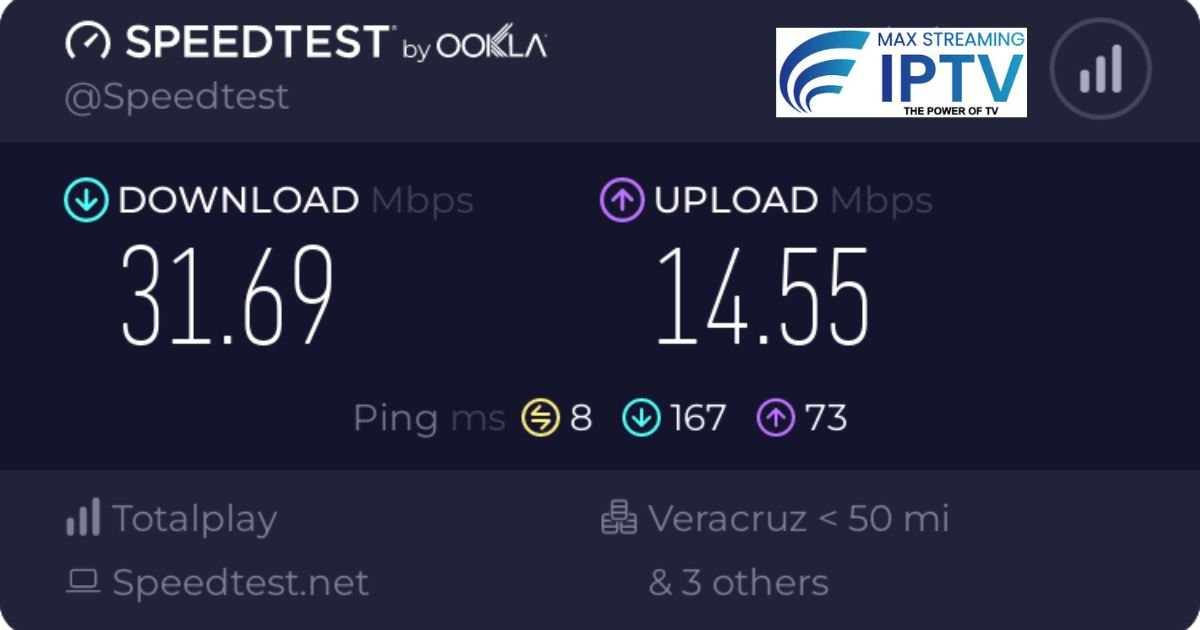
IPTV needs a stable connection more than a fast one. A 100 Mbps connection that drops every few minutes is worse than a steady 20 Mbps line.
Minimum speeds for smooth IPTV streaming:
Quality | Recommended Speed |
|---|---|
| SD (Standard Definition) | 5–8 Mbps |
| HD (1080p) | 10–15 Mbps |
| 4K / Live Sports | 25–50 Mbps |
| Multiple devices | Add 10 Mbps per extra screen |
How to test properly:
- Go to speedtest.net on the same device you stream on
- Run the test three times — morning, evening, and night
- If results vary by more than 20%, your connection is unstable
Fixes if your speed is low or inconsistent:
- Switch to wired Ethernet — this single change eliminates most buffering for Firestick and Smart TV users
- Move closer to your router or upgrade to a mesh Wi-Fi system
- Use 5GHz Wi-Fi instead of 2.4GHz — faster speeds, less interference
- Restart your router and modem — clears temporary congestion
- Disconnect other devices that are downloading or streaming simultaneously
2. Choose the Right IPTV Player App

Not all IPTV apps are equal. Using the wrong player is the second most common cause of buffering — even with a great IPTV subscription.
Best IPTV apps in 2026:
TiviMate (Best overall — especially for Firestick) Clean interface, excellent EPG guide, supports multiple playlists, and has advanced buffer settings. Free version available; premium is worth the upgrade.
IPTV Smarters Pro (Best for beginners) Simple setup — just enter your IPTV login details and you’re streaming. Supports catch-up TV and is available on almost every device.
GSE Smart IPTV (Best for phones and tablets) Lightweight and reliable. Good for iOS and Android users.
IBO Player (Free option) Basic but stable. Works well for users who just want simple, no-fuss streaming.
Critical settings to change in any app:
- Buffer size → Set to Medium or Large (Settings > Playback)
- Hardware acceleration → Enable this — reduces CPU strain significantly
- Cache → Clear it weekly (Settings > Storage > Clear Cache)
- UDP Proxy → Enable if your ISP blocks certain streaming ports
For Firestick users: Install apps using the Downloader app — enter the official APK URL provided by your IPTV service’s support team.
3. Optimise Your Device Settings

A slow device equals a slow stream — even on fast internet.
For all devices:
- Restart your device daily to clear memory leaks
- Close all background apps before you start streaming
- Keep your app and device firmware updated (Firestick: Settings > My Fire TV > About > Check for Updates)
- Free up storage — devices with less than 500MB free RAM struggle with 4K streams
Change your DNS settings: Your ISP’s default DNS can slow down or throttle streaming. Switching takes 2 minutes:
- Google DNS: 8.8.8.8 and 8.8.4.4
- Cloudflare DNS: 1.1.1.1 and 1.0.0.1
On Firestick: Settings > Network > [Your Wi-Fi] > Advanced > DNS
About VPNs: If you’re using a VPN, temporarily disable it and test your stream. Many VPN servers reduce speed. If you need a VPN, choose a server geographically close to you (UK server for UK IPTV users) and use a provider known for fast streaming servers.
4. Work With Your IPTV Provider’s Features

A good IPTV provider gives you tools to fix buffering on their end too. Here’s how to use them:
- Update your server URL — providers update server addresses periodically for better performance. Check your welcome email or contact support for the latest URL.
- Request an alternate server — if one server is congested, most providers (including premium UK IPTV services) offer backup servers. Ask support directly.
- Limit simultaneous connections — if your plan supports 3 connections but you have 5 devices trying to stream, you’ll buffer. Stick within your plan’s limit.
- Test during off-peak hours — evenings (7–10 PM) and major sporting events are peak load times. If buffering only happens then, a server upgrade or alternate stream may help.
Thousands of UK viewers stream Premier League, Champions League, and Champions League knockout rounds without buffering — the difference is usually which server they’re connected to.
5. Is IPTV Legal? (Quick Guide by Country)

This is one of the most searched questions about IPTV in 2026 — and the answer depends on what type of IPTV service you use.
Legal IPTV services are those that have obtained proper broadcast licences — services like IPTV apps from Sky, Virgin, or licensed re-broadcasters. These are completely legal everywhere.
Unlicensed IPTV services that stream premium content (Sky Sports, Netflix, HBO) without paying for those rights operate in a legal grey area or are outright illegal depending on your country.
| Country | Status |
|---|---|
| 🇬🇧 United Kingdom | Watching unlicensed streams is illegal under the Digital Economy Act |
| 🇨🇦 Canada | Supplying unlicensed IPTV is illegal; personal viewing laws are unclear |
| 🇦🇺 Australia | Strong anti-piracy laws; ISPs are required to block known illegal services |
| 🇺🇸 United States | Federal copyright law applies; enforcement has increased since 2024 |
This is a general overview, not legal advice. Laws change — always verify with a local legal source.
The safest approach: Use a service that provides licensed content, or ensure your provider operates within the legal framework of your country.
6. When to Contact Your IPTV Provider’s Support

If you’ve tried all the above and buffering continues, it’s time to contact support. To get a faster resolution, have this ready:
- A screenshot of the error message or buffering screen
- Your speed test result (from speedtest.net)
- Your device type, app name, and app version
- The time and channel/stream where buffering occurred
Most reputable IPTV providers offer 24/7 support via WhatsApp or live chat and can fix most issues — wrong credentials, server routing problems, or account configuration — within minutes.
IPTV Pricing: What to Expect in 2026
If you’re still looking for a service, here’s a general guide to IPTV pricing in the UK market:
Plan | Price Range (monthly) | Typical Features |
|---|---|---|
| Basic (1 connection) | £5–£10/month | HD channels, basic EPG |
| Standard (2 connections) | £10–£15/month | HD + 4K, catch-up TV |
| Premium (3–5 connections) | £15–£25/month | 4K, VOD, anti-freeze tech, priority servers |
Prices vary by provider. Always check if a free trial is available before committing — a good provider will offer one.
Quick Troubleshooting Checklist
Before contacting support, run through this list:
- Internet speed tested on streaming device — stable above 15 Mbps?
- Using wired Ethernet or 5GHz Wi-Fi?
- Correct IPTV player app with hardware acceleration enabled?
- Buffer size set to Medium or Large?
- DNS changed to 8.8.8.8 or 1.1.1.1?
- VPN disabled or tested with fast server?
- Device restarted and background apps closed?
- Latest server URL from provider?
- Within your plan’s connection limit?
If all boxes are ticked and you’re still buffering — contact your IPTV provider.
Final Thoughts: Smooth IPTV Streaming in 2026
Buffering in IPTV is almost always fixable. Start with your internet connection, move to your app settings, and then optimise your device. In most cases, you’ll solve it within the first two steps.
For the best experience, pair a reliable internet connection with a reputable IPTV provider that offers multiple server options, 4K support, and responsive customer support.
Which device do you stream on — Firestick, Smart TV, Android box, or phone? Drop a comment below and I’ll share device-specific tips in the next post.

1 Comment
Best IPTV for Firestick 2026 – Tested & Reviewed | Max Streaming
[…] How to fix IPTV buffering in 2026 — complete guide […]