How to Set Up IPTV on Smart TV (Samsung & LG) in 2026 — Complete Guide
Updated: September 2026
Don’t have a Firestick? You don’t need one. Most Samsung and LG Smart TVs from the last few years can run IPTV directly, no extra device required. This guide walks through the exact setup process for both, along with what to expect in terms of performance.
Can Your Smart TV Run IPTV Directly?
Most Smart TVs made after 2019 can install IPTV player apps directly from their app store, or via sideloading tools where needed. Performance varies by TV model — older or budget models may struggle with 4K streams, so it’s worth checking your TV’s processor and RAM if you’re aiming for 4K playback.
If your TV is older or underpowered, a cheap external streaming device may actually give a smoother experience — our guide on Firestick alternatives covers several budget options that pair well with any TV.
Setting Up IPTV on a Samsung Smart TV
Samsung TVs run Tizen OS, and while the Samsung App Store has limited native IPTV apps, there are two reliable routes:
Option A: Smart IPTV App (Most Reliable)
- Go to the Samsung App Store and search for “Smart IPTV” — install it.
- Open the app. It will display a MAC address on screen.
- Go to siptv.eu on your phone or computer, register that MAC address, and upload your M3U playlist URL (sent to you after signup).
- Restart the app on your TV — channels should load within a minute.
Option B: Web Browser Method
If your Samsung TV has a built-in web browser, some providers support direct web-based playback, though this method is generally less stable than a dedicated app and not recommended for regular use.
Setting Up IPTV on an LG Smart TV
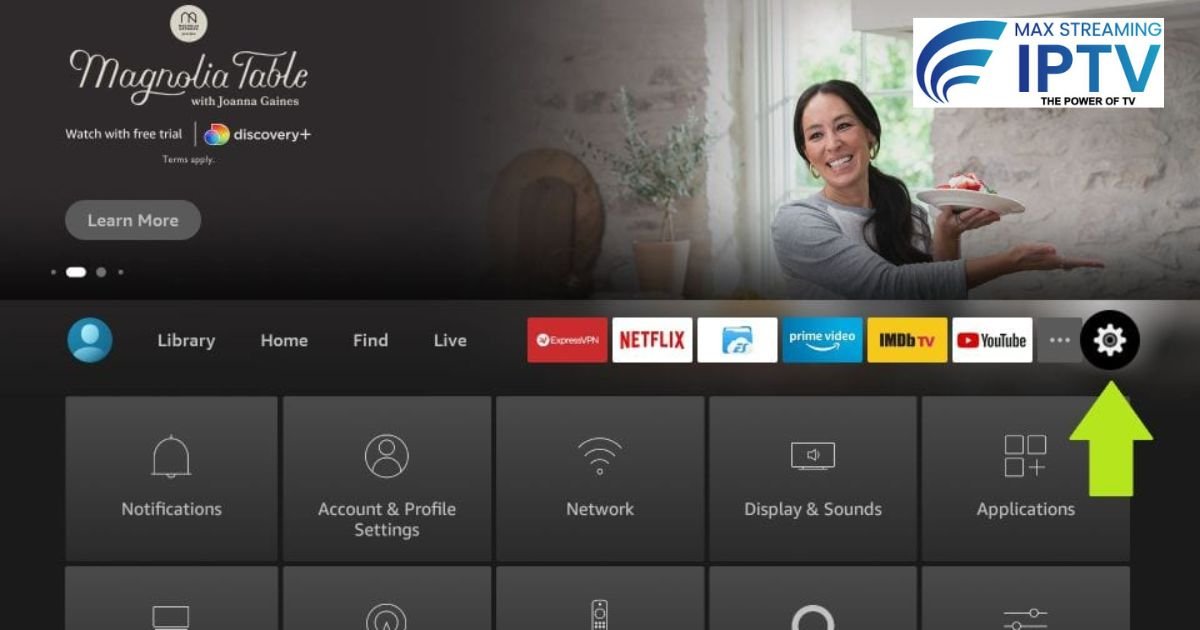
LG TVs run webOS, which has slightly better native app support for IPTV:
- Open the LG Content Store and search for “IPTV Smarters” or “SS IPTV” — install whichever is available on your model.
- Open the app and choose “Login with Xtream Codes” (if using IPTV Smarters) or enter your M3U playlist URL directly.
- Enter the username, password, and server URL you received after signing up.
- Save and let the channel list load — this can take a minute or two on the first launch.
If IPTV Smarters isn’t available in your region’s LG Content Store, SS IPTV works similarly to the Samsung method above — register your device on their website and upload your playlist there.
Setting Up the Electronic Program Guide (EPG)
Once your channels are loading, you’ll likely want a proper TV guide instead of scrolling blindly. If you’re not familiar with how this works, our EPG setup guide explains exactly how to add and configure your programme guide so you can see what’s airing and browse by time slot, just like traditional TV.
Getting the Best Performance on Smart TV
Smart TVs are generally less powerful than dedicated streaming devices, so a few adjustments help a lot:
- Use wired Ethernet where possible — most Smart TVs have a LAN port, and it makes a bigger difference on TV apps than on Firesticks
- Close background apps — Smart TVs often keep several apps running that eat into available memory
- Restart weekly — clears memory buildup that can cause slow channel switching over time
- Avoid running the browser and IPTV app simultaneously — this is a common cause of freezing on lower-end TVs
If you’re still seeing buffering after trying the above, our complete buffering fix guide covers additional fixes that apply across all devices, not just Firestick.
Testing Before You Commit
Since Smart TV performance varies so much by brand and model, it’s worth testing on your specific TV before buying a long-term plan. Max Streaming IPTV offers a free 24-hour trial with no card required — message us on WhatsApp to get your test login. For a full checklist of what to actually test during that trial, see our guide: What to Test During Your IPTV Free Trial.
Choosing the Right Provider for Smart TV Use
Not every provider performs equally well on Smart TV apps — some optimise primarily for Firestick and treat Smart TV support as an afterthought. Look for a provider offering direct Smart TV compatibility rather than requiring workarounds. Our guide on choosing the best IPTV UK subscription covers what separates a genuinely reliable provider from one that only looks good on paper.
Pricing
| Plan | Price | Per Month |
|---|---|---|
| 1 Month | £11.99 | £11.99 |
| 3 Months | £29.99 | £10.00 |
| 12 Months | £69.99 | £5.83 — best value |
See the full pricing page for current plans and details.
Is IPTV on Smart TV Legal?
Yes — IPTV as a technology is fully legal to use on any device, including Smart TVs. What matters is whether your provider operates with proper licensing and transparency. See our full breakdown: Is IPTV Legal in UK, USA, Canada & Australia?
Frequently Asked Questions
Do all Smart TVs support IPTV?
Most TVs from 2019 onward can run IPTV apps, though performance varies. Older or budget models may need an external device for the best experience.
Which is better for IPTV — Samsung or LG?
Both work well. LG’s webOS generally has slightly more native app options, while Samsung often requires the Smart IPTV registration method — neither is significantly better for streaming quality itself.
Why is my Smart TV IPTV app slower than Firestick?
Smart TVs typically have less processing power than dedicated streaming devices. Using wired Ethernet and closing background apps helps close the gap significantly.
Can I use the same subscription on my Smart TV and Firestick?
Depends on your plan’s device limit — check your subscription’s simultaneous connection allowance, available on our FAQ page.
Ready to Get Started?
Test it on your own Smart TV before committing to a plan. Request a free 24-hour trial on WhatsApp or view our full pricing plans.
[…] visit and no dish. If you’re setting up on a TV rather than a streaming stick, our guide on setting up IPTV on Samsung and LG Smart TVs covers the exact […]