

How to Fix Buffering in IPTV 2026: Best Tips for Zero Lag on Firestick & Smart TV
- By Max Streaming Team
- February 21, 2026
- Accecories
How to Fix Buffering in IPTV 2026: Best Tips for Zero Lag on Firestick & Smart TV
Buffering is the worst enemy during a live Premier League match or your favorite movie climax. 😩 If you’re using IPTV in 2026 and facing lag, pixelation, or endless spinning wheels – don’t worry, you’re not alone.
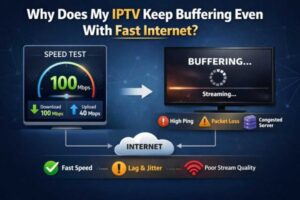
Most people blame the IPTV service, but 80% of the time, it’s your setup, internet, or app settings.
In this guide, I’ll share proven fixes that work perfectly with Max Streaming IPTV (18,000+ channels, anti-freeze tech, 4K support). These tips helped me go from constant buffering to smooth, zero-lag streaming. Let’s fix it step by step!
1. Check Your Internet Speed First (The #1 Cause)
IPTV needs stable speed – not just “fast” speed.
Minimum for HD: 10–15 Mbps download
For 4K & smooth sports: 25–50 Mbps or higher
Upload speed: At least 5 Mbps (for multi-device use)
Quick Test:
Go to speedtest.net on the same device you’re streaming on. Run the test 3 times (morning, evening, night) to check consistency.
Fixes if speed is low:
-
Switch to wired Ethernet (not WiFi) – reduces lag by 50–70%.
-
Restart router/modem – clears temporary issues.
-
Disconnect other devices (phones, downloads) using bandwidth.
-
Use 5GHz WiFi band if possible (faster, less interference).
Pro Tip: Max Streaming works great on 15 Mbps+ with their anti-freeze servers – but stable connection is key.
2. Choose the Right IPTV Player App
Wrong app = more buffering.
Best apps for 2026 (all free or cheap):
-
TiviMate (Best for Firestick – clean UI, EPG, multi-playlist)
-
IPTV Smarters Pro (Easy login, catch-up TV support)
-
IBO Player (Free with yearly Max Streaming plans – lightweight)
-
GSE Smart IPTV (Good for phones/tablets)
Settings to Change in App:
-
Set buffer size to medium or large (in settings > playback).
-
Enable hardware acceleration (reduces CPU load).
-
Use UDP proxy if your ISP blocks ports (ask support).
-
Clear cache regularly (in app settings).
For Firestick: Install via Downloader app – code 12345 or direct APK from official site.
3. Optimize Your Device & Network Settings
-
Restart device daily – clears memory leaks.
-
Update app & device firmware (Firestick settings > My Fire TV > About > Check for updates).
-
Close background apps.
-
Use a VPN? Turn it off first to test – some VPNs slow down speed. If needed, choose fast servers (UK/USA close ones).
-
Change DNS to Google (8.8.8.8) or Cloudflare (1.1.1.1) – fixes ISP throttling.
4. Use Max Streaming’s Anti-Freeze Magic
Max Streaming IPTV has built-in anti-freeze technology + multiple servers.
Tips specific to Max:
-
Always use the latest server URL (they update for better routing).
-
If one server lags, ask support for alternate – they provide fast.
-
Multi-connection plans (up to 5 devices) – spread load.
-
Test during off-peak hours first.
Thousands of UK users watch Premier League, Champions League zero buffering with these.
5. When to Contact Support (Don’t Wait!)
If nothing works:
-
Screenshot error or buffering time.
-
Share your speed test result.
-
Message on WhatsApp (fast reply, 24/7).
They fix most issues in minutes – like wrong credentials or server switch.
Final Thoughts: No More Buffering in 2026!
With good internet + right app settings + reliable service like Max Streaming IPTV – buffering becomes history.
Try their free trial today:
maxstreamingiptv.com
or WhatsApp for instant setup.
Have you fixed your buffering? Drop your tips in comments below! 👇
Which device do you use most – Firestick, Smart TV, or phone? Let me know, I’ll share device-specific hacks in next post.
Stay streaming smooth! 🚀