IPTV EPG Problems in 2026: Missing Guide Data, Wrong Times & Easy Fixes
IPTV EPG Problems in 2026: Missing Guide Data, Wrong Times & Easy Fixes
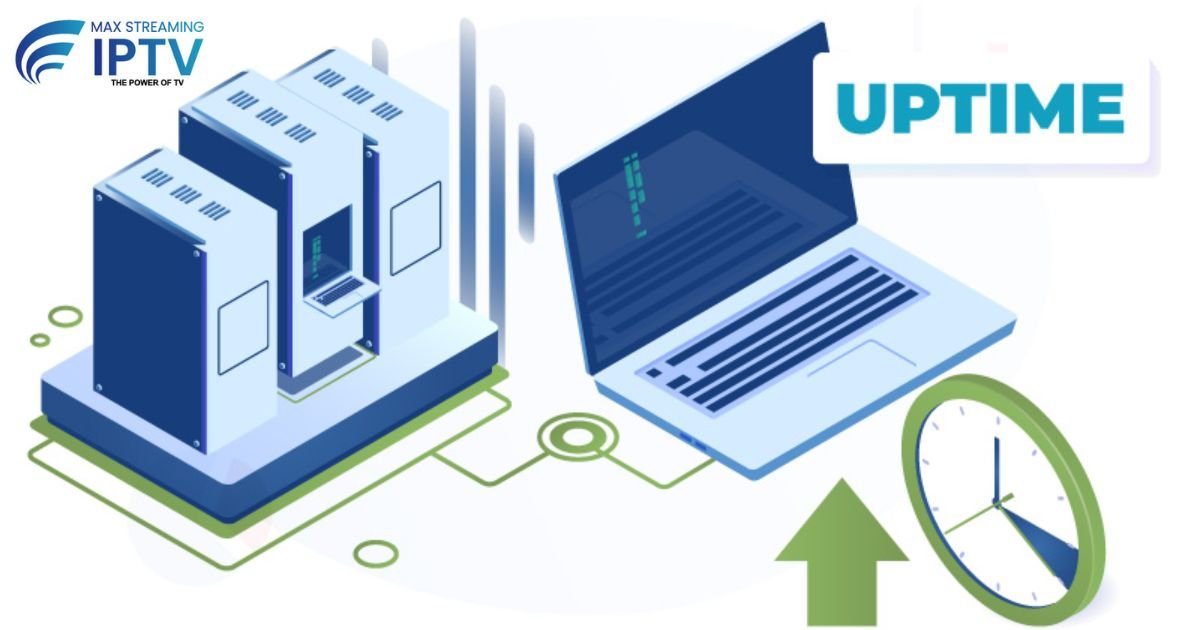
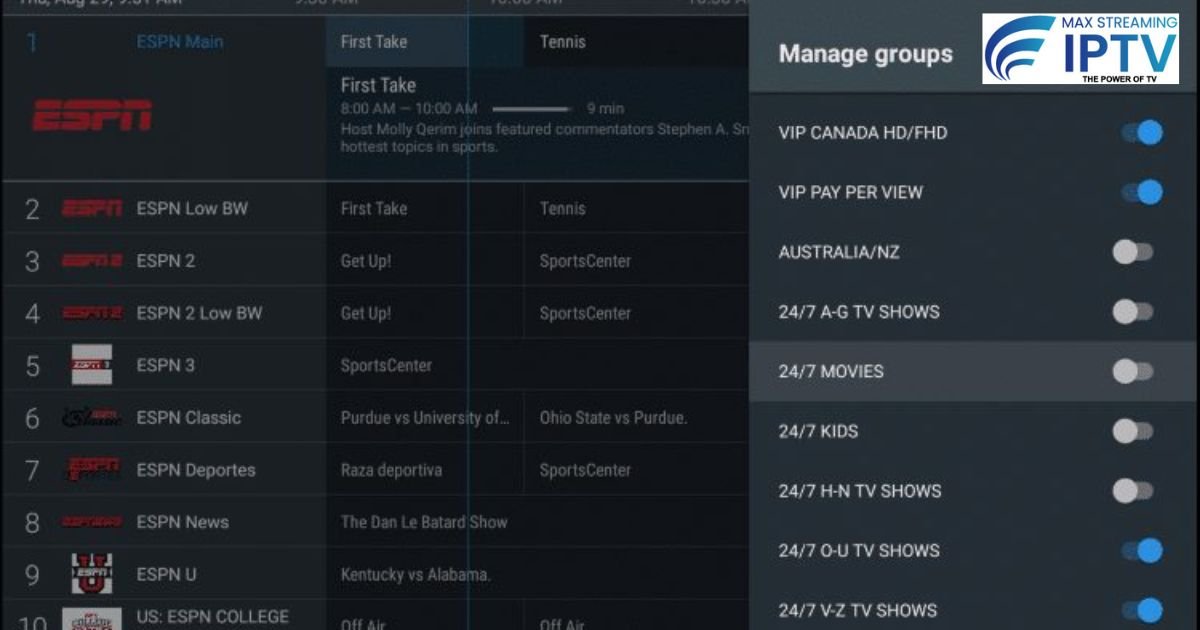
When using IPTV on a Firestick, Android TV, Smart TV, or another compatible device, the electronic program guide (EPG) can make live TV much easier to navigate. Instead of checking each channel manually, an EPG shows programme names, schedules, descriptions, and upcoming broadcasts in a familiar TV-guide format.
However, EPG information does not always work perfectly.
You may see a blank TV guide, incorrect programme times, missing channels, or an EPG that stops updating. In many cases, these problems are caused by simple settings or compatibility issues rather than the IPTV app itself.
This guide explains the most common IPTV EPG problems in 2026 and the practical steps you can take to troubleshoot them.
What Is an IPTV EPG?
EPG stands for Electronic Programme Guide.
It is the digital TV schedule displayed inside many IPTV players. Depending on the service and player, an EPG can show:
- Current programmes
- Upcoming programmes
- Programme start and end times
- Channel names
- Programme descriptions
- Categories and genres
- Multi-day TV schedules
An EPG does not normally provide the video stream itself. Instead, it provides scheduling information that an IPTV player displays alongside the available channels.
For example, when you open a sports channel, the EPG might show what is currently playing and what is scheduled next.
Why Is My IPTV EPG Not Working?
There is no single reason why an EPG may fail.
Common causes include:
- Incorrect EPG settings
- An expired or unavailable EPG source
- Incorrect time-zone settings
- Poor internet connectivity
- Cached or outdated guide data
- An IPTV player compatibility issue
- Channel names that do not match the EPG data
- Temporary problems with the EPG provider
- An incorrectly configured playlist
Before changing several settings at once, it is better to identify which type of EPG problem you are experiencing.
1. IPTV EPG Is Completely Blank
One of the most common problems is opening the TV guide and seeing no programme information.
The channels may still work normally, but the EPG section is empty.
What to check
First, confirm that your IPTV subscription or playlist actually includes EPG data.
Some IPTV services provide channel streams separately from programme-guide information. If the EPG source is missing or unavailable, the player may still display the channels without showing schedules.
Next, refresh the playlist or EPG inside your IPTV player.
The exact option depends on the application, but it may be called:
- Refresh EPG
- Update EPG
- Reload Guide
- Update Playlist
- Refresh Data
After refreshing, close and reopen the application.
2. EPG Shows the Wrong Time
Another common issue is seeing programmes several hours ahead or behind your local time.
This is often related to the device’s time-zone configuration.
Check your device time
On Firestick and Android-based devices, open the device settings and check the date and time section.
Make sure:
- Automatic date and time is enabled where available
- The correct time zone is selected
- The device is connected to the internet
For UK users, the time displayed can also change depending on daylight-saving time.
If your device clock is incorrect, the EPG may appear incorrect even when the programme data itself is accurate.
3. Only Some Channels Have EPG Data
You may find that popular channels display programme information while other channels show nothing.
This does not necessarily mean your IPTV player is broken.
EPG information depends on matching channel data with the channels in your playlist. If a channel name or identifier does not match the available EPG data, the guide may remain empty for that channel.
For example, the playlist might contain a channel under one name while the EPG source uses a different channel identifier.
What can you do?
Refresh the EPG first.
If only specific channels are affected, check whether those channels are supported by the EPG source being used by your player or provider.
4. EPG Stops Updating
Sometimes the guide works initially but remains stuck on old programme information.
This can happen when cached guide data is being displayed instead of newly downloaded information.
Try the following:
- Open your IPTV application.
- Find the EPG or TV Guide settings.
- Select the update or refresh option.
- Wait for the update to finish.
- Restart the application.
- Check whether the schedule has changed.
If the problem continues, clearing the application’s cache may help.
Be careful when clearing application data rather than cache because this can remove saved settings or login information.
5. IPTV EPG Loads Very Slowly
A slow EPG can be caused by several factors.
The guide may contain information for hundreds or thousands of channels, meaning the application has to process a large amount of data.
Your internet connection can also affect how quickly the guide information is downloaded.
Try these steps
- Restart your router.
- Restart your streaming device.
- Close unused applications.
- Refresh the EPG.
- Reduce unnecessary playlists or channel groups if your player allows it.
- Check whether the issue happens on other devices.
If streaming itself is working normally but the guide takes a long time to load, the issue may be related specifically to the EPG data rather than your internet connection.
6. EPG Works on One Device but Not Another
If the same IPTV account displays an EPG correctly on one device but not another, the problem may be related to the application or device configuration.
For example, you might have:
- EPG working on an Android TV
- EPG missing on a Firestick
- EPG working in one IPTV player
- EPG missing in another player
This is useful information because it suggests that the playlist or service may not be the only factor involved.
Try updating the IPTV application and checking its EPG settings.
If possible, use the same playlist and EPG configuration on both devices and compare the results.
7. EPG Data Is Several Days Old
An EPG normally needs to be updated regularly.
If you can only see old programmes and the schedule does not move forward, the guide data may not be updating correctly.
Start by manually refreshing the EPG.
If that does not work, restart the application and check your internet connection.
If the guide remains outdated across multiple devices, the issue may be on the EPG source side rather than your device.
8. Does Internet Speed Affect IPTV EPG?
Internet speed can affect how quickly EPG information downloads, but EPG problems are not always caused by slow internet.
A relatively small amount of data is normally required to download programme-guide information compared with video streaming.
Therefore, if your channels stream smoothly but the EPG is blank, the problem may be related to:
- EPG configuration
- Playlist data
- Channel mapping
- Application settings
- EPG source availability
This is why simply upgrading your internet connection does not necessarily fix every EPG problem.
9. Clear Cache Before Reinstalling the App
Reinstalling an IPTV application is often suggested as a first solution, but it should not always be your first step.
A simpler option is clearing the application’s cache.
Cached information can sometimes become outdated or corrupted.
On many Android-based devices, you can find the option under:
Settings → Apps → Your IPTV Player → Storage → Clear Cache
The exact menu names can vary between devices.
After clearing the cache, reopen the application and refresh the EPG.
Avoid selecting Clear Data unless you are prepared to configure the application again.
10. Update Your IPTV Player
Older versions of IPTV applications can sometimes have compatibility problems with newer device software or updated playlist formats.
If an update is available through your device’s official app store, installing the latest version can help.
After updating:
- Restart the application.
- Check your playlist.
- Refresh the EPG.
- Open several channels.
- Check whether programme information is now appearing.
Only download applications from trusted and legitimate sources. Avoid unknown APK websites that may distribute modified or unsafe software.
EPG Troubleshooting Checklist
If your IPTV guide is not working, go through this checklist in order:
Step 1: Check your internet
Make sure the device is connected properly.
Step 2: Check device time
Confirm that the date, time, and time zone are correct.
Step 3: Refresh the EPG
Use the application’s built-in EPG update or refresh option.
Step 4: Restart the application
Completely close the IPTV player and open it again.
Step 5: Clear cache
Clear the application’s cache if the guide remains stuck.
Step 6: Check the playlist
Make sure your playlist is still active and loading channels correctly.
Step 7: Test another device
If possible, test the same account or playlist on another compatible device.
Step 8: Check for application updates
Make sure you are using a current version of your IPTV player.
EPG vs IPTV Playlist: What’s the Difference?
It is easy to confuse the IPTV playlist with the EPG, but they serve different purposes.
The playlist contains information that helps the player access available channels and streams.
The EPG provides programme schedule information.
In simple terms:
Playlist = channels and stream information
EPG = TV programme schedule
You can therefore have working channels without working EPG data.
This distinction is useful when troubleshooting because it tells you whether the problem affects streaming itself or only the programme guide.
Can an IPTV Service Work Without EPG?
Yes.
An IPTV player can still display and play channels even when EPG information is unavailable.
The main difference is that you may not see programme names, schedules, or upcoming broadcasts.
For viewers who mainly watch individual channels, this may not be a major problem. For people who frequently browse live TV or sports channels, a working EPG can make navigation much easier.
Why Sports Channels Need Accurate EPG Data
EPG information can be particularly useful for live sports.
A properly updated guide can make it easier to see:
- Which programme is currently live
- Upcoming matches
- Start times
- Sports programme names
- Scheduled broadcasts
However, the EPG should be treated as a guide rather than a guarantee that a particular event will be available. Broadcast schedules can change, and programme information can sometimes be delayed or incorrect.
Frequently Asked Questions
What does EPG mean in IPTV?
EPG means Electronic Programme Guide. It provides programme schedules and related information inside compatible IPTV players.
Why is my IPTV guide blank?
A blank guide can be caused by missing EPG data, an incorrect configuration, outdated cached information, channel-mapping problems, or a temporary issue with the EPG source.
Why are IPTV programme times wrong?
Incorrect device time-zone settings are one possible cause. Check your device’s date, time, and time-zone configuration before changing other settings.
Can I watch IPTV without an EPG?
Yes. EPG information is used for programme-guide data. It is separate from the actual channel stream.
Why does EPG work on one device but not another?
Different IPTV players can handle playlists and EPG data differently. Application settings, compatibility, cached data, and device configuration can all affect the result.
How often should I refresh my IPTV EPG?
There is no universal schedule because it depends on the application and EPG source. If programme information appears outdated, manually refreshing the guide is a useful troubleshooting step.
Final Thoughts
A missing or incorrect IPTV EPG does not always mean that your IPTV service or streaming device is broken.
Start with the simple checks: confirm your internet connection, verify the device time and time zone, refresh the EPG, restart the player, and clear the cache if necessary.
If channels work normally but the guide does not, focus your troubleshooting on the EPG configuration and data source rather than repeatedly changing your internet connection or streaming device.
For the best experience, keep your IPTV player updated and use legitimate applications and services that provide clear setup and support information.
Need help choosing a plan?
Message us on WhatsApp and we will set you up.
Chat on WhatsApp See pricingRelated: Services · Devices · Setup guides